UX/UI
Case study
Disaster communication& SOS app
LACS is a portable local communication system for when the internet or mobile network is unavailable or disrupted. I designed its Feed, Messaging and SOS experiences — so someone in danger can raise an alert in one tap, and a responder nearby knows who needs help, where, and what happened.
- Role
- UI Design
- Platform
- Mobile app (Android)
- Scope
- 16 key screens
- Tools
- Figma
Project Overview
LACS — Locally Accessible Cloud System — is a disaster communication and local ICT platform. It brings feeds, messaging and SOS onto a local network, so a community can keep talking when the internet or mobile network is down.
The design goal: make asking for help the easiest thing on the screen — and give whoever answers everything they need to act.
My role · UI Design
I designed the Feed, Messaging and SOS/Emergency experiences: the one-tap SOS, reporting by photo, video, voice or text with preset quick messages, and the responder's alert inbox, alert details and resolution flow.
- 16Screens designed
- 4Ways to report
- 1-tapEmergency SOS
- 2Sides: reporter & responder
Problem Statement
In a disaster, the networks people rely on are often the first thing to fail. That breaks the chain between someone who needs help and someone who can give it:
- Internet and mobile networks go down or get congested exactly when they're needed most
- People in danger have no dependable way to reach help
- Rescuers hear about emergencies without a precise location or context
- Panic, injury and poor light make typing a long message hard
- Reports arrive in fragments — calls, texts, word of mouth
- Responders can't tell which alerts have already been handled
The solution
Design Goals
One tap to SOS
A full-width red Emergency SOS button sits at the top of Home, ahead of everything else.
Report any way you can
Photo, video, voice or text — with preset messages, so nobody has to type under stress.
Location, attached
Alerts arrive with a map pin, so responders know where to go before they ask.
Close the loop
Responders triage an alert inbox, call or chat, and mark each alert as resolved.
Two sides of one alert
User Flow
- 1Tap SOSEmergency SOS on Home
- 2Add informationPhoto · Video · Voice · Text
- 3CaptureShoot, record or write
- 4Review & sendQuick messages, one Send
- 1Alert raisedWho, what and where
- 2Alert detailsLocation map + media
- 3Call or chatReach the reporter
- 4Mark as resolvedMoves to Resolved
Inside the app
Key Features
Emergency SOS, in one tap
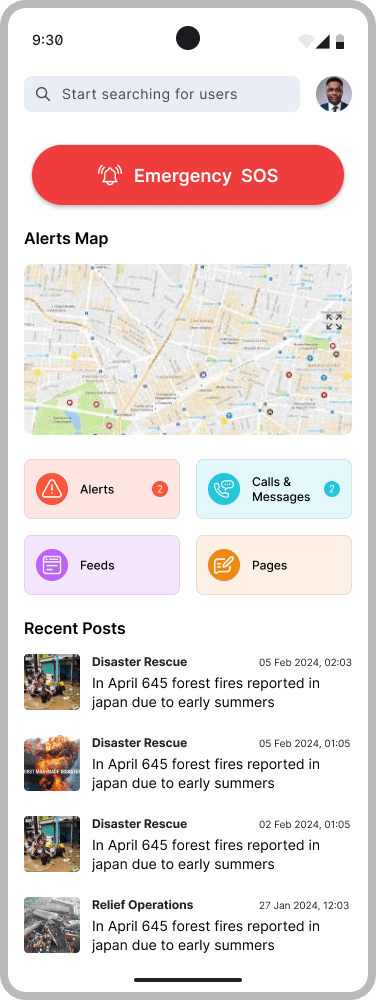
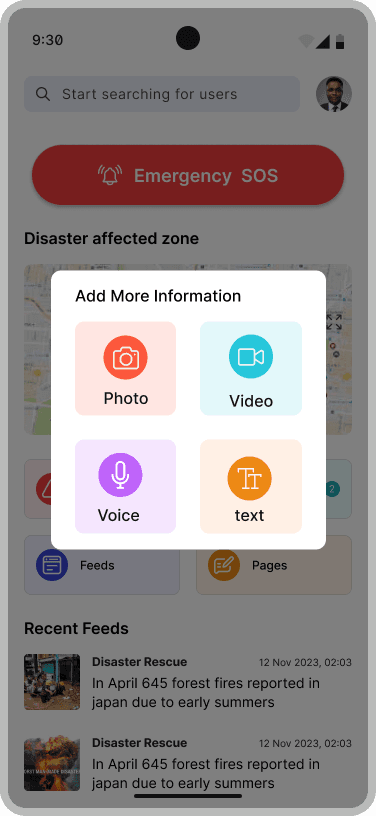
The red Emergency SOS button spans the top of Home, above the Alerts map, quick tiles and recent posts. One tap triggers the SOS and brings up an Add More Information sheet to attach a photo, video, voice note or text.
- Full-width, high-contrast SOS button at the top of Home
- Four big, colour-coded tiles to add information
- Unread counts on the Alerts and Calls & Messages tiles
Capture, without clutter
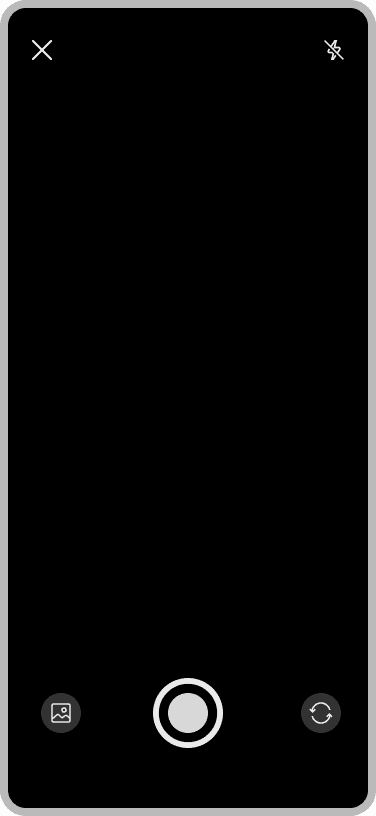
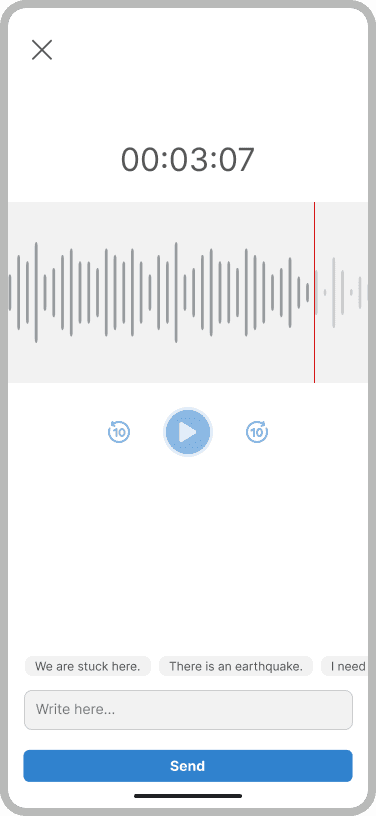
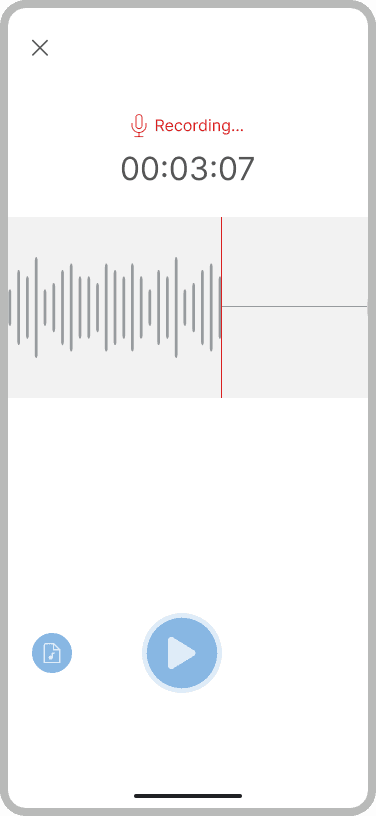
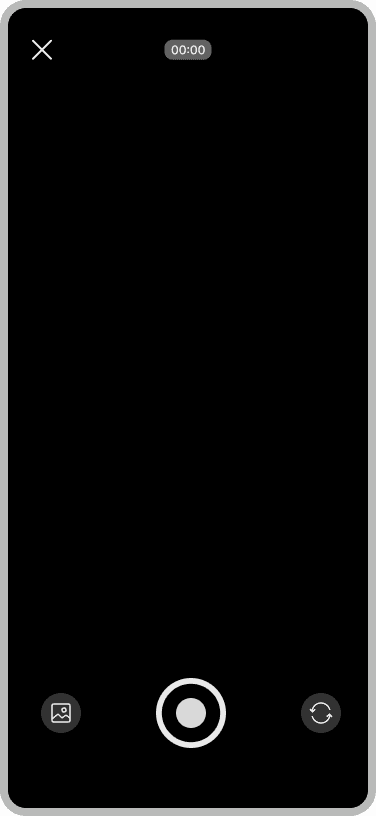
Each format opens a focused capture screen. The camera keeps only close, flash, gallery, shutter and flip. Voice recording shows a red Recording… label, a running timer and a live waveform, then hands over to a review screen.
- Minimal camera controls on a full-bleed viewfinder
- Live timer and waveform while recording
- Playback with 10-second skips before sending
Quick messages, not typing
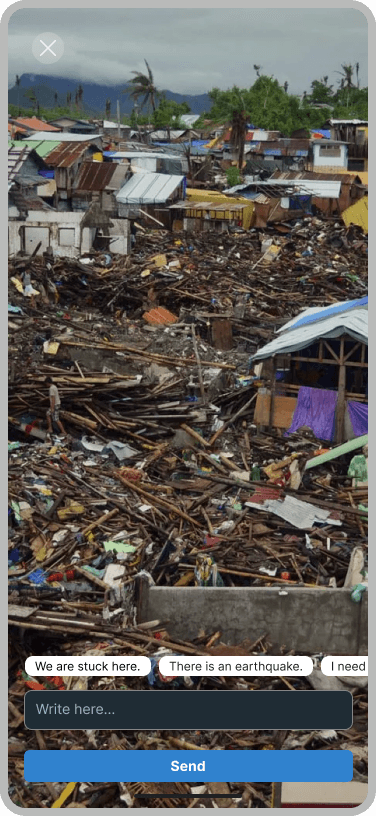
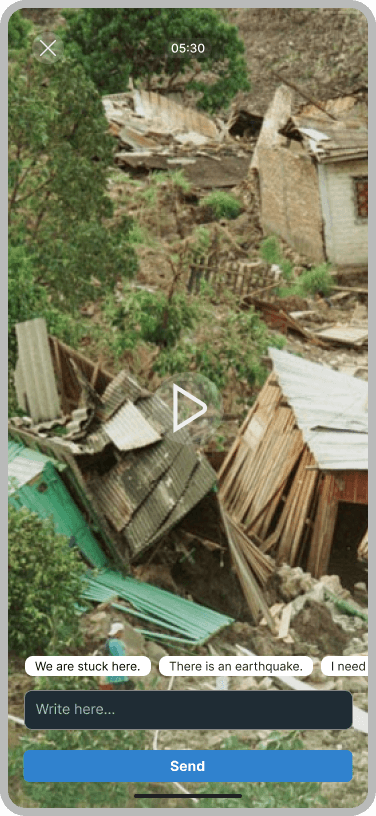
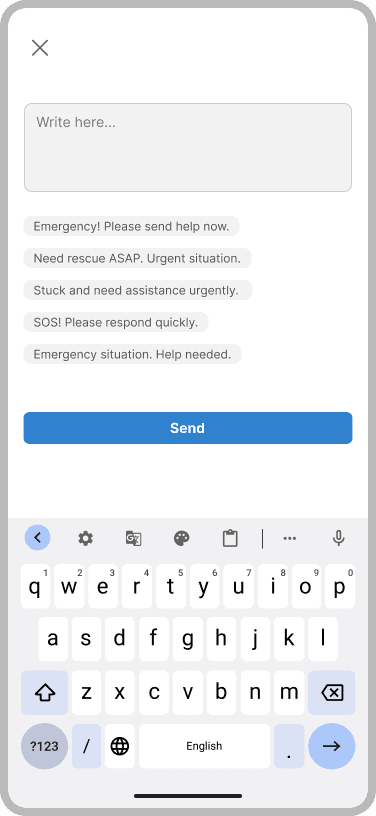
Typing is hard with shaking hands. Review screens add one-tap chips — “We are stuck here.”, “There is an earthquake.” — above an optional Write here field, and text mode starts from preset phrases like “Emergency! Please send help now.”
- Scrollable quick-message chips on photo, video and voice review
- Five preset emergency phrases in text mode
- One full-width Send button on every screen
From alert to action
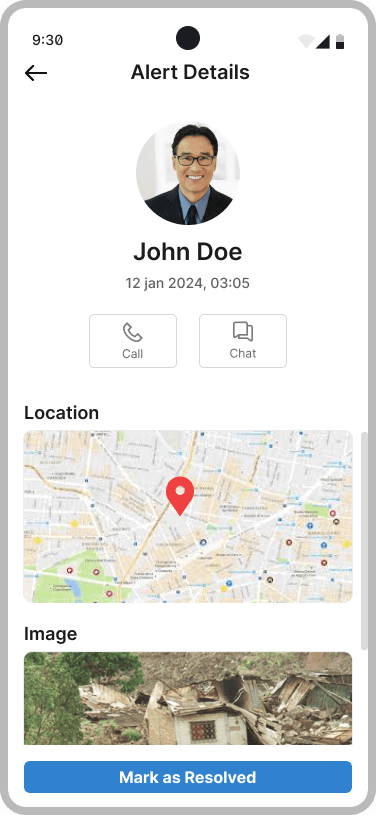
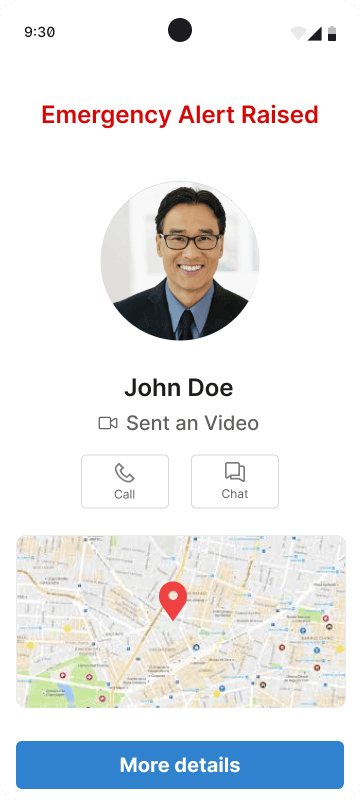
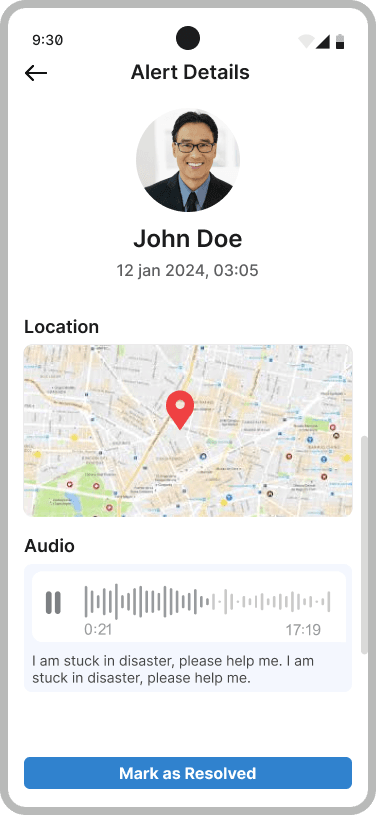
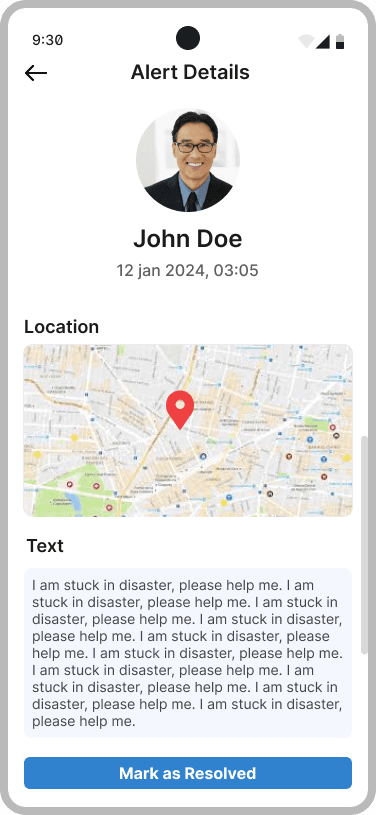
On the responder's side, an incoming SOS takes over the screen as Emergency Alert Raised: who sent it, what they sent, where they are, and Call or Chat. More details opens the full alert, with Mark as Resolved always at the bottom.
- Sender, media type and map pin in one view
- Call and Chat one tap away
- More details opens the full Alert Details
An alert inbox built for triage
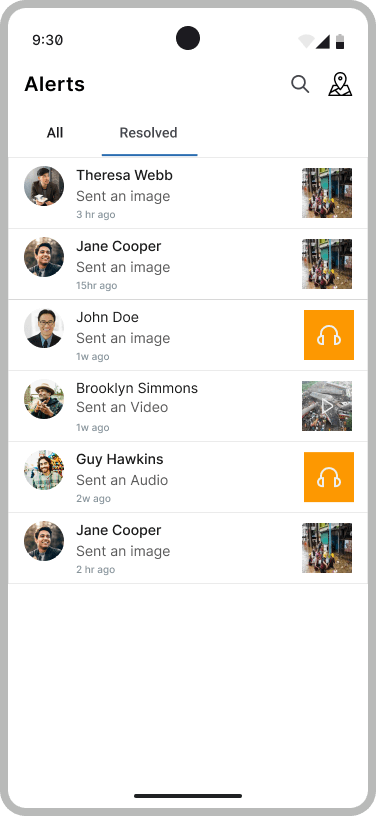
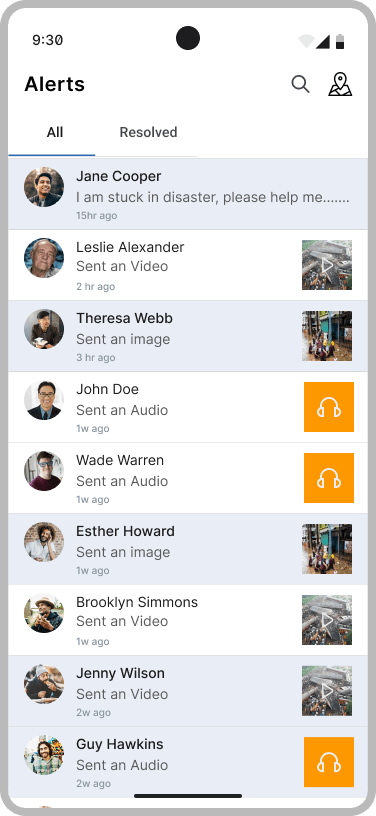
Alerts collects every report in one list — who, what they sent and how long ago, with an image or video thumbnail or an audio badge. Unread alerts are highlighted, and handled ones move to their own Resolved tab.
- All and Resolved tabs
- Unread alerts highlighted at a glance
- Search and map view in the header
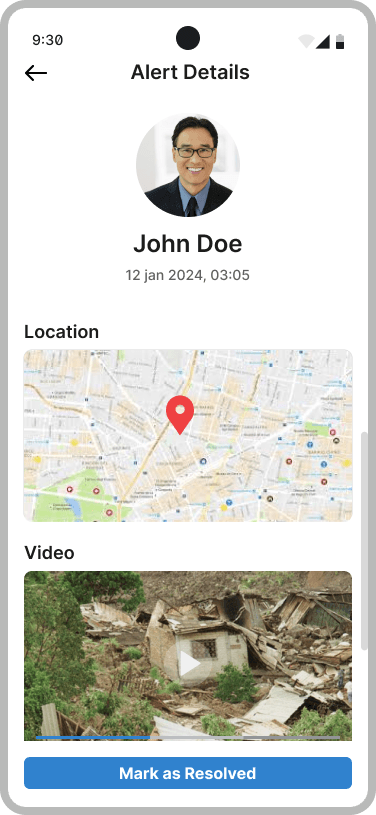
Alert details
One layout, every format
Every alert keeps the same order — who, when, where — and swaps only the media block, so responders always know where to look. Mark as Resolved stays pinned to the bottom.
Design principles
Designing for stress
People reaching for LACS may be injured, frightened or in the dark. Four principles shaped every screen.
01Big, unmissable targets
SOS is a full-width button, and reporting options are large tiles rather than a list.
02Tap, don't type
Quick-message chips turn a sentence into a single tap; writing stays optional.
03Red means emergency
Red marks the SOS button, the alert headline, recording and map pins. Everyday actions stay a calm blue.
04Nothing to misread
Capture screens show only the controls needed: close, gallery, shutter and flip.
Visual language
Design System
Colour
- Deep navy#0F2C4A
- Hover#2468AA
- Rescue blue#2F7FCB
- SOS red#EC3C3C
- Audio amber#FD9801
- Mist#E8F2FC
Report types
- Photo#FC573B
- Video#26C6DA
- Voice#BE63F9
- Text#ED8915
Type
Clean, neutral sans
Bold names and headings, regular messages, small grey timestamps — legible at a glance.
16 screens
All Screens
Design Takeaways
LACS keeps feeds, messaging and SOS running on a local network when the internet is out. The interface had to be just as dependable: calm, familiar and impossible to misread.